


You finally stumble upon the perfect Caption (something inspiring, clever, or worth saving) but the moment you try to copy Instagram caption, Instagram blocks you with no option to select or copy the text.
Suddenly, a simple moment turns into a small quest, pushing you to wonder what hidden tricks can unlock that Caption. It's the kind of roadblock that instantly sparks curiosity, because if millions of users face the same limitation, there must be a smarter way around it. And the surprising part?
The real solutions are much simpler than people think. If this struggle feels familiar, keep reading, because the Instagram copy caption tools you've been searching for are right here.
How Can I Copy Instagram Caption?
Fortunately, several practical and effective workarounds exist to copy Instagram caption. Below, we explore six complete methods, each fully detailed with features, steps, and real examples.
These methods cover everything from direct copy from browsers to Instagram copy caption tools. Let’s dive in.

1. Online Web-Based Tools
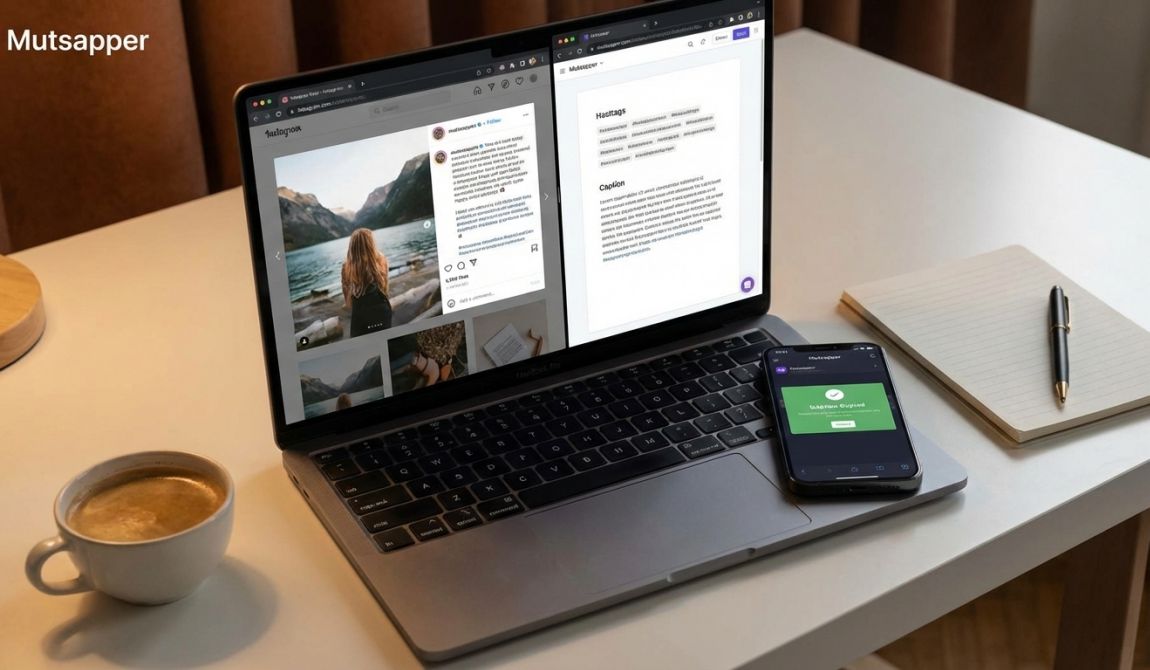
Many online tools specialize in copying Instagram captions using only the Instagram post URL, such as Instaspeeder, Flydownloader, and Mutsapper Instagram caption saver.
These tools are the choices you need when the Instagram app doesn’t allow text selection. Let’s continue to thoroughly analyze one of them for you in the meanwhile:
What Are the Key Features of Mutsapper Instagram Copy Caption Tool?
- Fast Extraction: Get the full Caption in seconds without logging in.
- Complete Output: Some tools also extract comments, hashtags, or the first comment Caption.
- Works Everywhere: Browser-based, so compatible with any device.
- Ad-free and hassle-free: Great, clean, and user-friendly environment, no pop-ups, no clutter.
- Secure and reliable: There is no login required, no data storage, and it has perfect privacy.
- Daily updates and support: It is regularly updated, and you can ask any problem.
Steps to Copy Instagram Caption Using Mutsapper
- Go through the Instagram posts and choose your desired Caption.
- Copy the Post Link as usual from Instagram by tapping share icon.
- Open the online tool and enter the downloaders and open Instagram copy caption tool.
- Insert the URL into the input box, tap “Extract”, and the full Caption appears instantly.
For example, during a marketing analysis, you may need every hashtag a competitor has used. A caption extraction site guarantees complete accuracy, providing a clean, copyable caption.
2. Copy Directly from Instagram Using a Web Browser
The simplest method to copy text from Instagram app content (without additional apps) is to open Instagram posts in your web browser. This immediately bypasses mobile restrictions and allows normal text selection.
As an example, if someone posts a long quote you’d like to save or analyze, you can directly copy Instagram caption without third-party apps simply by opening the post in your browser.
In this way, only a standard browser such as Chrome, Safari, or Firefox is required. It works on any device that supports a web browser, including phones, tablets, and desktops. The Caption becomes selectable like regular webpage text, making this a highly reliable Instagram copy/paste workaround.
- Copy the Post Link: In the Instagram app, tap the share icon on the post and select “Copy link”.
- Open in Browser: Paste the link into your browser’s address bar.
- Select & Copy: Long-press (on mobile) or drag your cursor (on desktop) to highlight the Caption, then tap or click “Copy”.
3. Use Live Text on iPhone & iPad (iOS 15+)
iPhone and iPad users can take advantage of the built-in Live Text OCR feature to copy IG captions. This powerful Instagram copy Caption tool reads text inside images, including screenshots of Instagram posts, making it one of the easiest solutions for anyone asking “How to copy Instagram caption on iPhone”.
For instance, if an Instagram Reel displays a caption or text overlay too quickly, you can take a snapshot, then use Live Text to save Instagram caption with perfect accuracy by following these steps:
- Take a Screenshot of the Instagram caption you wish to copy.
- Open the Screenshot in your Photos app.
- Activate Live Text by tapping the icon or long-pressing the text.
- Select & copy the Caption.
4. Use Google Lens on Android Devices
Android users can easily extract Instagram text with Google Lens, Google’s powerful OCR system. This method is the definitive answer to “How to copy Instagram caption on Android” without needing a desktop.
For example, if a friend shares important information in their Caption, you can instantly use Google Lens to extract and send it, all without leaving the Instagram app. By following the steps:
- Open the Instagram Post containing the Caption.
- Activate Google Lens via Google Assistant (long-press the Home button or use a voice command).
- Choose “Search Screen.”
- Select Text Mode and let Lens highlight the detected Caption.
- Copy the text.
5. Use a Dedicated Caption Copying Third-party Apps
Some third-party apps exist solely to help copy an Instagram caption that restricts selection. This method is perfect when the Instagram caption not copyable issue persists despite trying other methods.
These Instagram copy caption tools are great for users who don't want to rely on browser Instagram caption copy tricks or technical tools. Many apps offer post downloading, reposting, and hashtag analysis, too. If you often need to copy text from Instagram app for work, a dedicated utility app saves more time than any other method.
- Install a caption copying app from the Play Store or App Store.
- Enable Accessibility Permissions when prompted.
- Open the Instagram Post you want to copy.
- Activate Copy Mode from your notification bar.
- Select & copy Instagram text.
6. Copy Instagram Caption Using Inspect Element (Desktop Only)
This technical method is ideal for advanced users, developers, researchers, and analysts who want complete accuracy when determining exactly “How to copy Instagram post text”, including hidden characters, formatting, or HTML structure.
By inspecting elements, you can access raw HTML and extract captions directly from Instagram's source code. It works even when all other tools fail.
- Open the Instagram Post in a desktop browser.
- Right-click the Caption and select Inspect or Inspect Element.
- Locate the Caption in the highlighted HTML section.
- Copy the Raw Text from the HTML tag (often inside `
` or ``).
If you’re analyzing a caption for unique formatting techniques (such as special line breaks, Unicode spacing, or hidden tags), Inspect Element provides perfect precision.

Finally
Although the official Instagram app makes Instagram caption not copyable, technology gives us many convenient workarounds. The mentioned methods ensure that you always have a reliable way to copy an Instagram caption whenever needed.
Now that you understand how to copy Caption on Instagram, you can effortlessly integrate caption extraction into your daily workflow. How about you?
Which of these six methods of Instagram copy caption tool is the fastest and most practical for your daily needs? Do you use another clever shortcut or app we didn’t mention? If this guide helped you, share it with friends or colleagues who struggle with copying captions! Subscribe to our newsletter for more guides, tools, and powerful Instagram copy/paste workaround techniques.
